Export orders and view checkout responses
Use order reports to review purchases, participant sales, and answers to your custom checkout questions.
Export an orders report
- Open Transactions > Orders.
- Apply the filters you need, such as participant, campaign, purchase date, status, email, phone, or order number.
- Select Export current view.

You'll receive an email when the CSV is ready. Open the Downloads tab, then select Download.
The report includes:
- Store and order: Store, Order Number, Order Status, Payment Date, Stripe Payment ID.
- Amounts: Amount, Total Cost, Net, Shipping Charge, Processing Fees.
- Shopper: Shopper Name, Shopper Email Address.
- Shipping: Shipping Name, Shipping Address Line 1, Shipping Address Line 2, Shipping City, Shipping State, Shipping Postal Code, Shipping Country.
- Items and fundraising: Product, SKU, Quantity, Participant, Campaign Questions, Admin Notes.
View checkout responses on an order
Open Transactions > Orders, find the order, and open it.

Scroll to Order Items to see the answers to custom checkout questions.

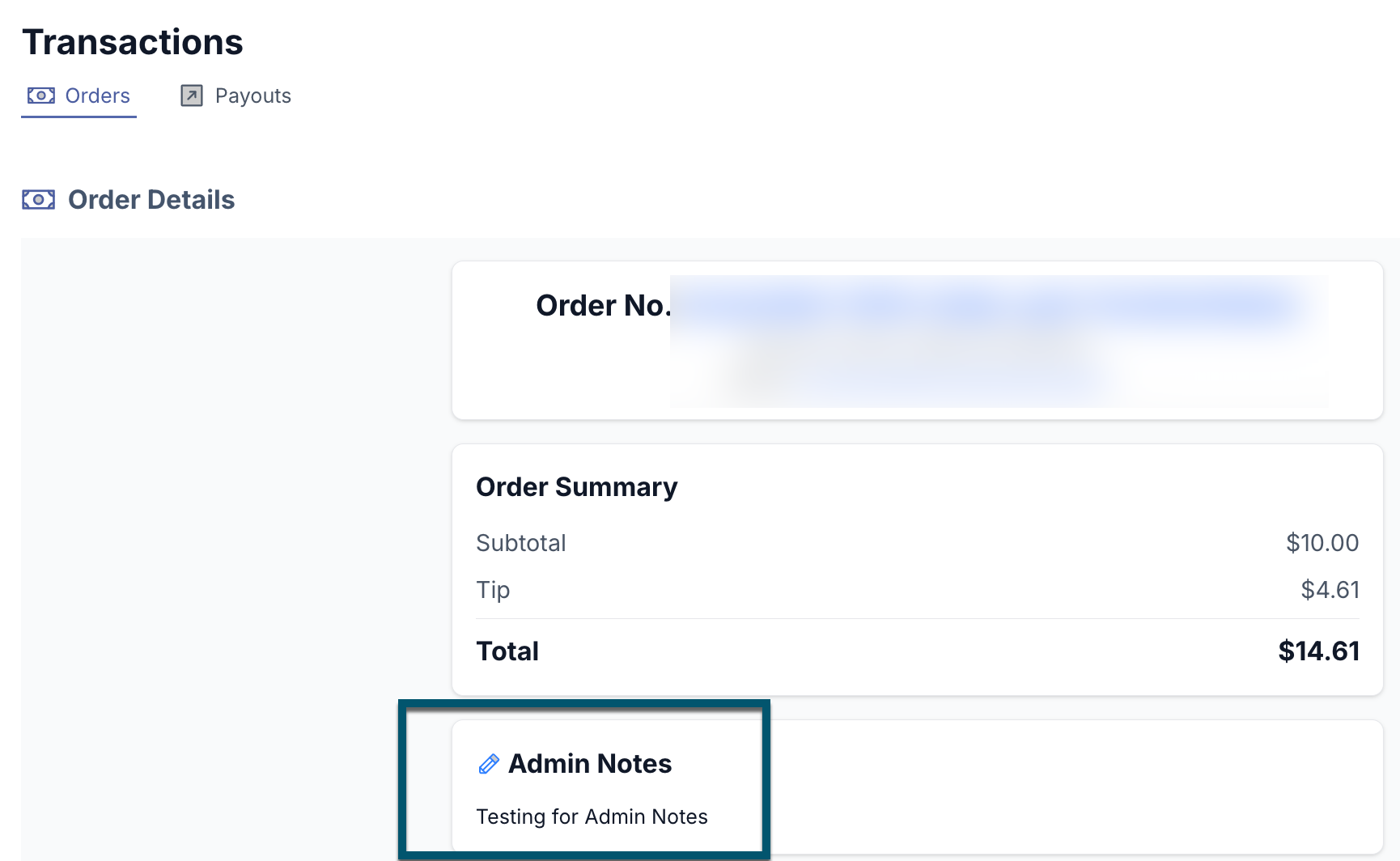
Add an admin note
Email support@simpleraise.com to request an admin note on an order. Only the SimpleRaise Support team can add these notes. Once added, they're visible to your program's administrators.