
Create a calendar fundraiser
A calendar fundraiser—also called pick-a-date or donate-a-day—lets supporters choose dates to donate. Each date starts with a matching dollar amount: day 1 is $1, day 31 is $31.
Start the fundraiser
Open Campaigns > Add Campaign, then choose Calendar Fundraiser.


Add a name and description
Use letters and numbers in the name, without special characters. Write a description of at least 154 characters explaining the fundraiser.

Set your goal
Calendar fundraisers require a goal. Enter the dollar amount without commas or spaces and choose:
- Collective Goal: One shared target for everyone.

- Individual Goal: A target for each participant. You can split it between the participant and the organization's Angel Fund.

Participants can join either type, but individual credit requires an individual goal.
Add photos and choose a month
Upload JPG, JPEG, or PNG images up to 10 MB. PDFs aren't supported. Square images of at least 500 × 500 pixels are recommended. The first photo is the main storefront image.
Choose the calendar month for your fundraiser.
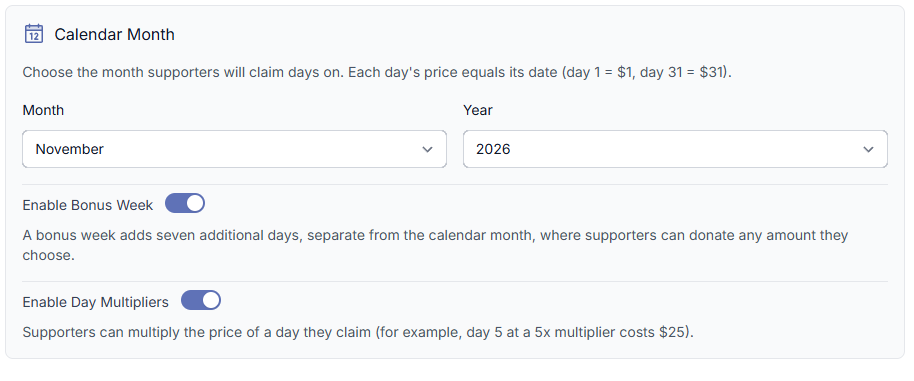
Bonus Week adds seven extra days, giving supporters more dates to choose.


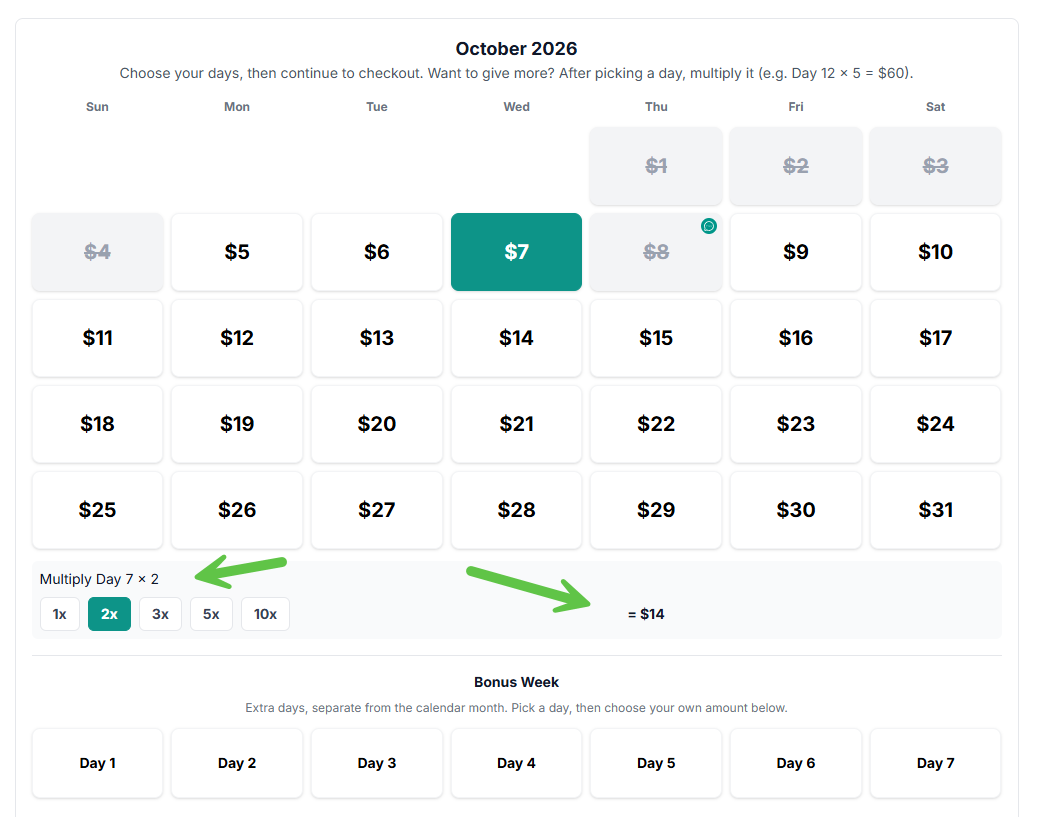
Day Multipliers increase the donation amount for selected days by the multiplier shown.
Add dates, video, and questions
Add a YouTube URL if you have a fundraiser video. Choose the start and end dates and, if needed, an auto-publish date.

Use custom checkout fields for details such as a personal message. You can make questions required. Once a question has answers, hide it instead of removing it.

Organize and publish
Select product categories to help supporters find the fundraiser, or leave categories unselected.


Add or reorder categories in Organization Settings > Product Categories. Categories with no assigned items won't appear in your store.

Review the details, then select Finish to publish.

Add participants and share their links
Open the Participants tab and add participants.

Each supporter needs a participant's calendar link. Without participants, the store directs visitors to use an individual participant's donation link.

Use the campaign's print options to share participant links.


For more ideas, browse our fundraising tips and FAQs. You can also create event tickets.